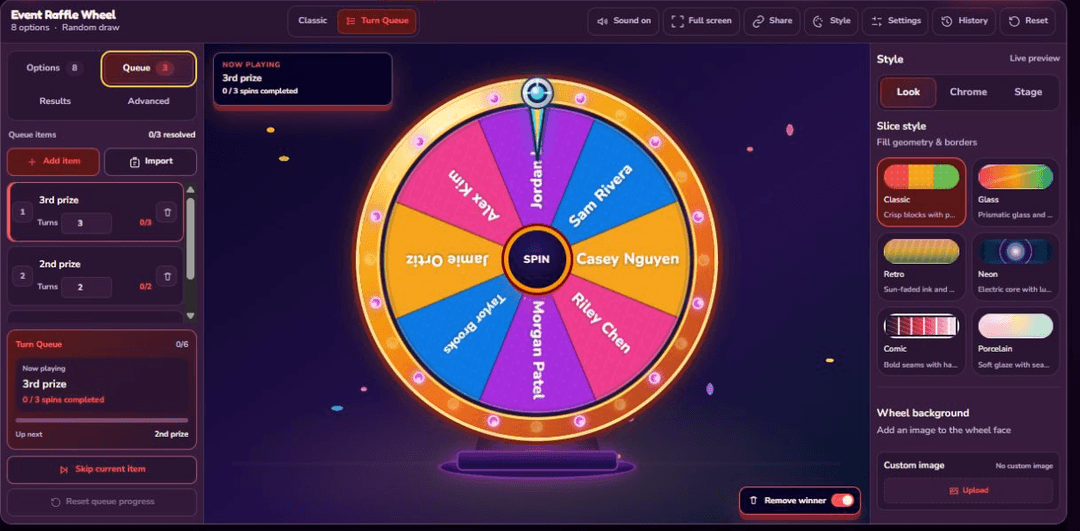
Updated August 12, 2026 after checking the steps against the current Options, Queue, Advanced, and Results controls. Examples are for informal sessions; product limits are stated in the guide.
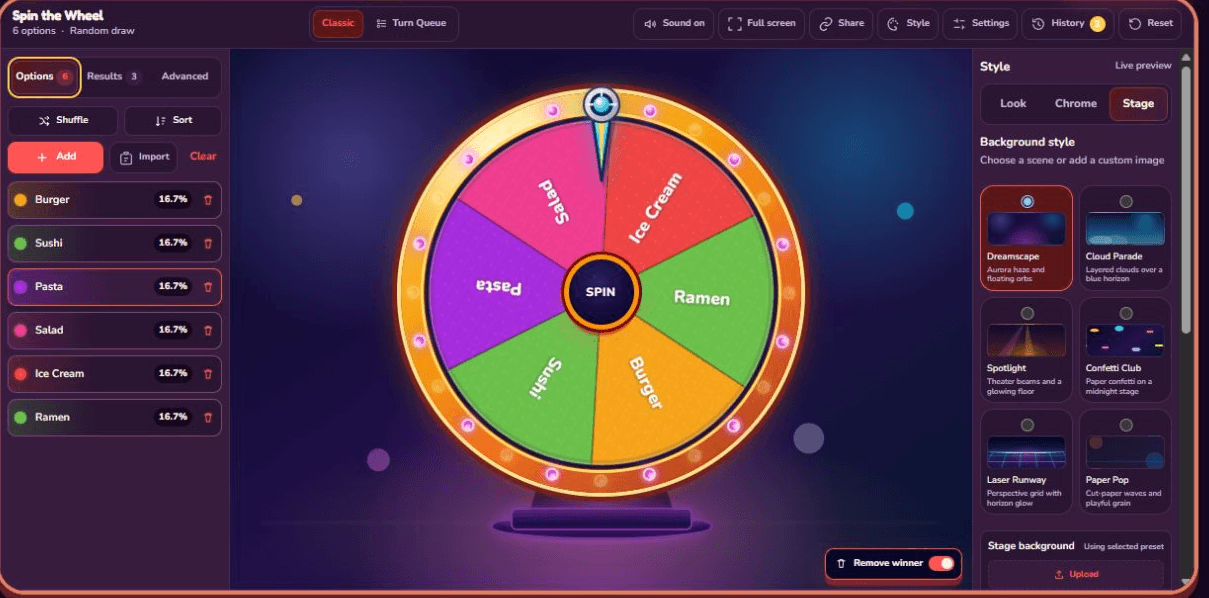
Classic mode is the right starting point when one list needs one random answer at a time: a student name, a dinner choice, a game prompt, a country, or a team. The page is arranged around the way a real session is prepared. Options and Results are on the left, the live wheel stays in the center, and Look, Chrome, and Stage controls are on the right. This guide follows that order so you can build a useful wheel without opening every setting.
Start by deciding what one spin should answer
Write the question before writing the list. “Which film will we watch?” produces a clearer wheel than mixing films, snacks, and start times in the same Options list. Every visible item should be an answer the group is prepared to accept. Remove placeholders, accidental duplicates, and choices that are no longer available before anyone sees the wheel spin.
Classic mode treats each spin as a choice from the current Options list. Keep Remove winner off when the same option may appear again, such as repeated drawing prompts. Turn it on when you are allocating unique countries, classroom turns, or tasks and each selected item should leave the wheel.
Add, edit, sort, or shuffle Options
Open the Options tab on the left. You can add an item, edit its label in place, delete it, sort the list, or shuffle the current order. The editor supports up to 100 options and keeps each label to 36 characters. Short labels are easier to read on the wheel, especially when the list contains more than a dozen items.
| Input | Supported value | Practical advice |
|---|---|---|
| Wheel options | Up to 100 | Use smaller focused lists when labels need to be read across a room |
| Option label | Up to 36 characters | Prefer a short display name over a full description |
| Item weight | 1–100 | Leave all values at 1 for equal chances |
| Session history | Up to 1,000 spins | Download CSV before clearing an important session |
The percentage shown beside each item is more useful than the raw weight. With six equal items, each displays about 16.7%. If one item is duplicated, that outcome now occupies two option records and can be selected twice as often as a single matching-weight item. Delete the duplicate unless that extra chance is intentional.
Paste a list or import an Excel column
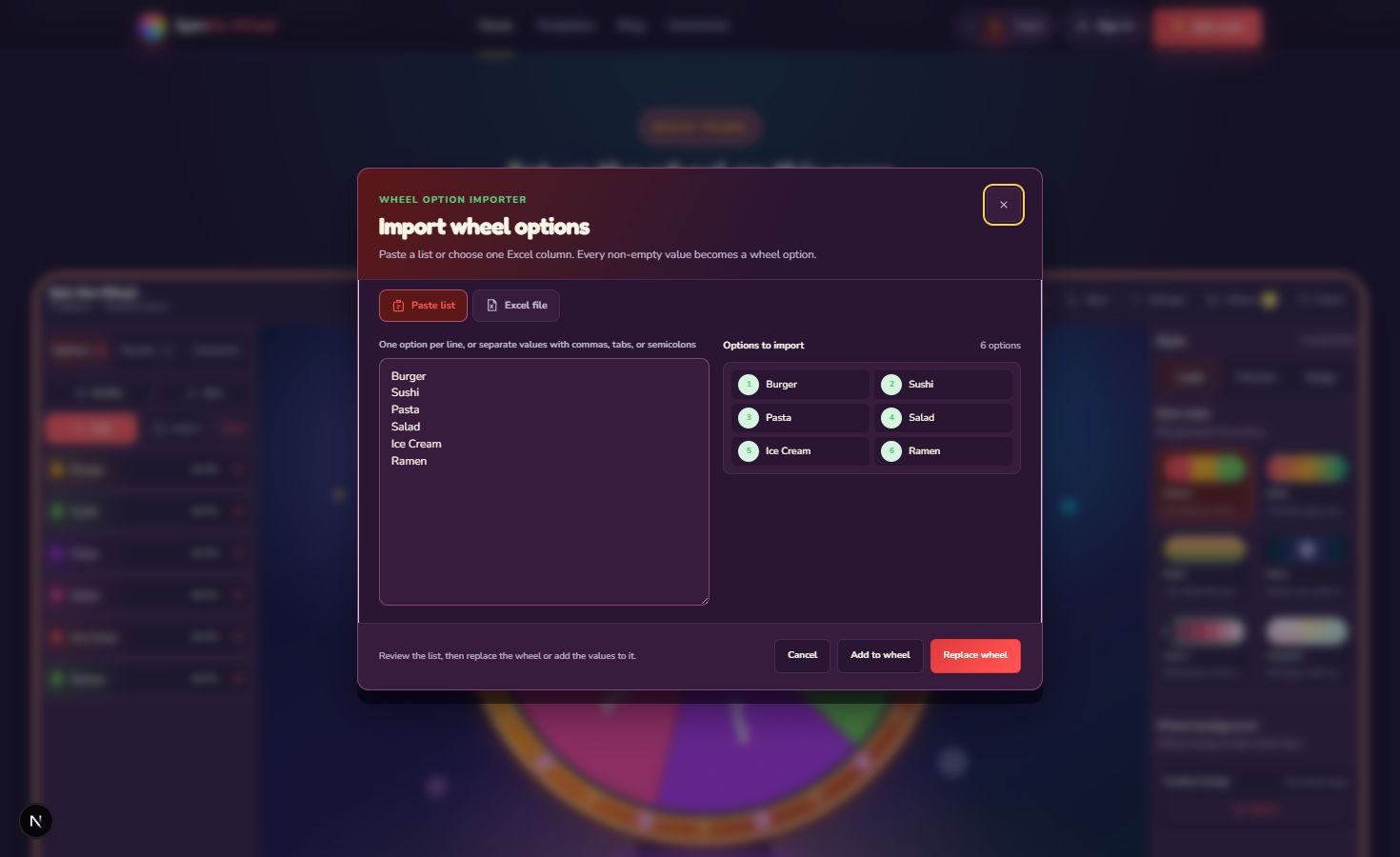
Select Import when typing each option would be slower. Paste accepts one option per line and also separates values at commas, semicolons, or tabs. Review the preview count, then choose Add to wheel to keep the current list or Replace wheel to start clean.
For Excel, choose a .xlsx or .xls workbook no larger than 5 MB. The importer reads the workbook in the browser, lets you select a worksheet and one column, and turns every non-empty cell in that column into an option. A reliable sheet looks like this:
| Column A | Import? |
|---|---|
| Alex Kim | Yes |
| Jordan Lee | Yes |
| Sam Rivera | Yes |
| Participant name | Delete this header from the preview or sheet |
Keep unrelated notes, email addresses, eligibility status, and prize information in other columns and import only the public label. The wheel is a display surface, so avoid exposing personal data that participants did not agree to show.
Use Advanced only when one item needs different treatment
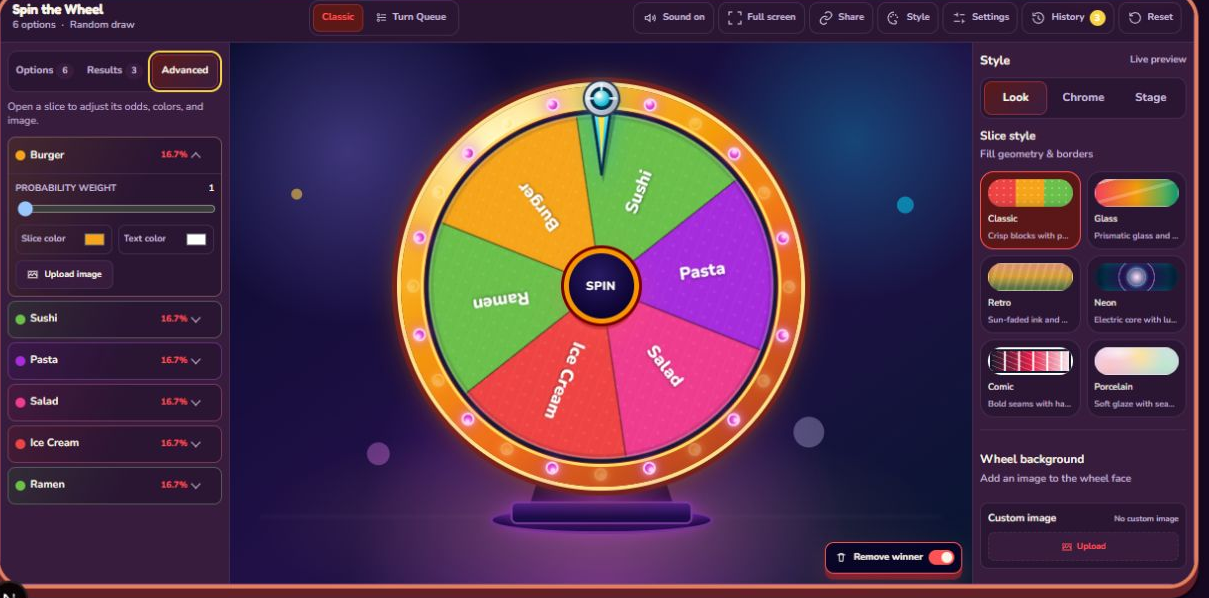
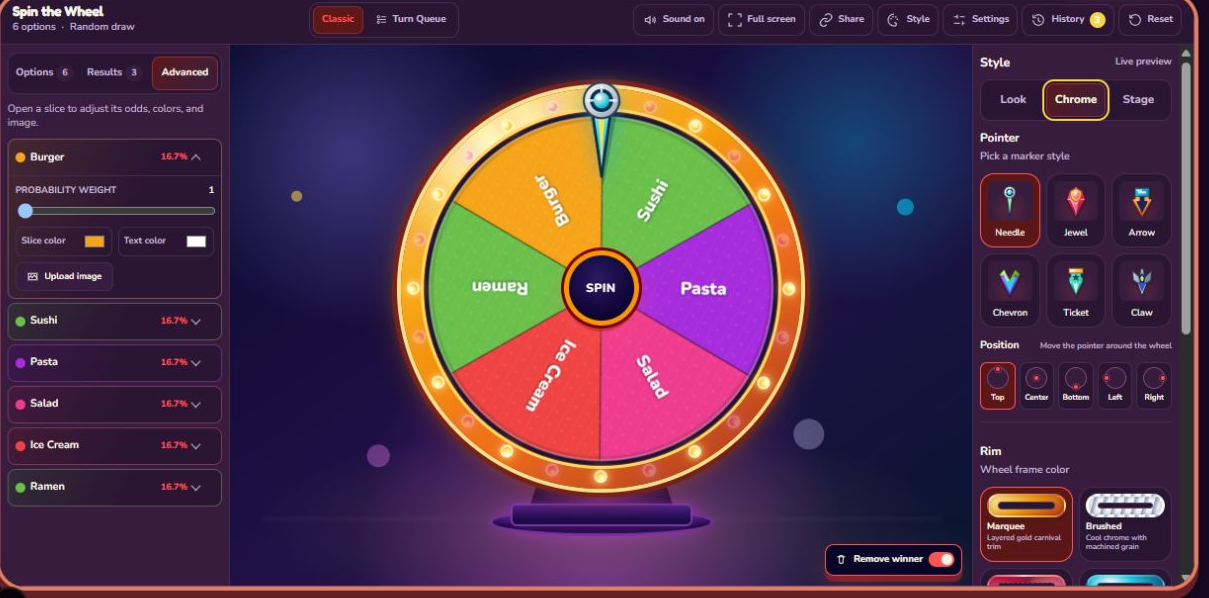
Advanced lets you change an individual option's weight, background color, text color, and image. Equal weights are the clearest choice when players expect equal odds. If you deliberately use different weights, show the displayed percentages before spinning. The actual chance is the item's weight divided by the total of all item weights; a weight of 50 is not automatically a 50% chance.
Item images are useful for flags, icons, or simple visual prompts. Keep text contrast readable and do not rely on color alone to identify an outcome. Uploaded images are processed in the browser, must be image files, and are limited to 5 MB before processing.
Style the wheel without changing its data
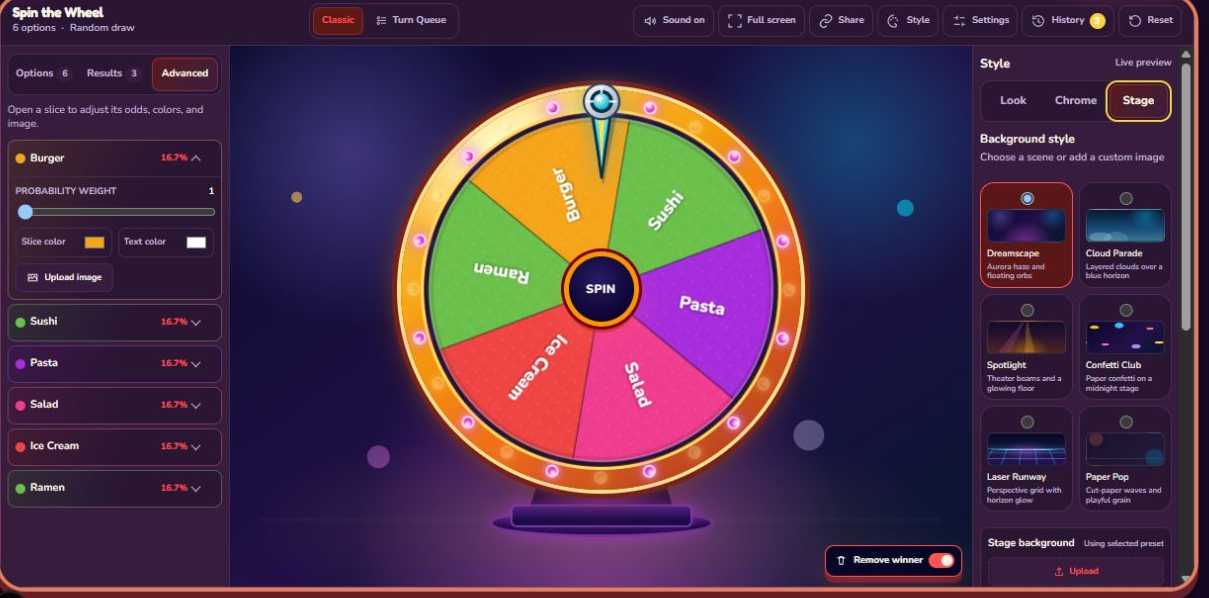
The right side separates appearance into three groups. Look changes slice geometry and can add a wheel-face image. Chrome controls the pointer style and position, rim, and lights. Stage changes the background and winner scene. These controls do not alter the option labels or their probabilities.
Choose style for the room rather than for the settings panel. A projector benefits from high-contrast labels, a simple stage, and a clear pointer. A party or stream can use a brighter rim and winner scene. Uploading a background can make the page feel specific to an event, but check that it does not compete with the wheel text.
Check sound, timing, fullscreen, and sharing
The toolbar above the wheel provides sound, fullscreen, sharing, style access, spin settings, history, and reset. Spin settings control duration and audio choices. Shorter timing is useful for repeated classroom turns; a longer spin can build anticipation during an event. Reduced-motion browser preferences shorten the animation automatically.
Share copies the current wheel setup into a link. It is useful when another person needs the same option list and settings. It does not serve as a results archive. Do not treat the shared URL as proof of who was selected; download the session results for that purpose.
Spin and read the result in the Results panel
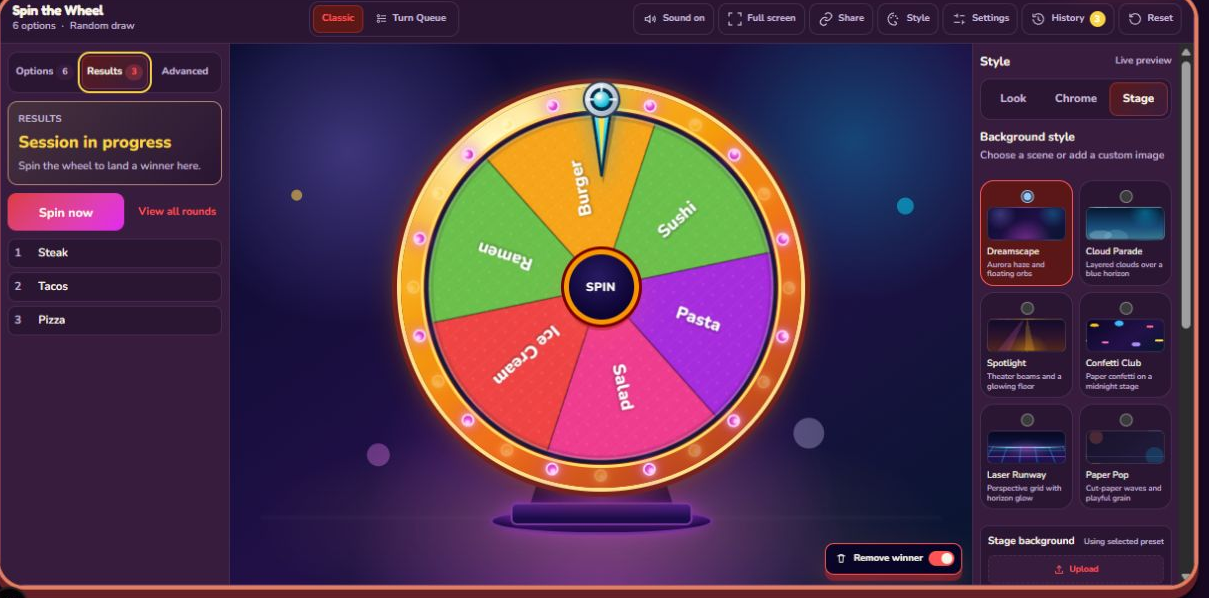
Press the center Spin button after everyone has seen the final list and repeat rule. The result is selected first, then the animation is calculated to stop inside the corresponding slice. When the spin finishes, the winner appears in Results and the session history updates.
View all rounds opens the fuller session summary. It shows the number of rounds, how many options have been picked, participation counts, and the recorded sequence. CSV export contains round, queueItem, queueTurn, entry, runMode, and pickedAt. In Classic mode, the two Queue fields stay empty.
A complete Classic workflow
- State the one question the wheel will answer.
- Add or import only acceptable answers.
- Check the option count, duplicates, labels, and displayed chances.
- Choose whether Remove winner should be on.
- Adjust item appearance in Advanced only where needed.
- Set Look, Chrome, Stage, sound, and timing for the room.
- Show the finished list, spin, and read the result card.
- Open all rounds and download CSV if the sequence matters.
Use the Spin The Wheel Yes Or No, Europe Country Wheel, or Color Spin The Wheel when a prepared list is faster than starting blank. If the activity needs ordered people, teams, or prize tiers with a fixed number of turns, continue with the Turn Queue guide.
How this guide was checked
The steps, labels, import formats, limits, and result fields were checked against the current Options importer, Advanced controls, style panels, session summary, and CSV formatter on August 12, 2026. The wheel is intended for classrooms, games, everyday decisions, and informal events. It is not a certified lottery or gambling system.