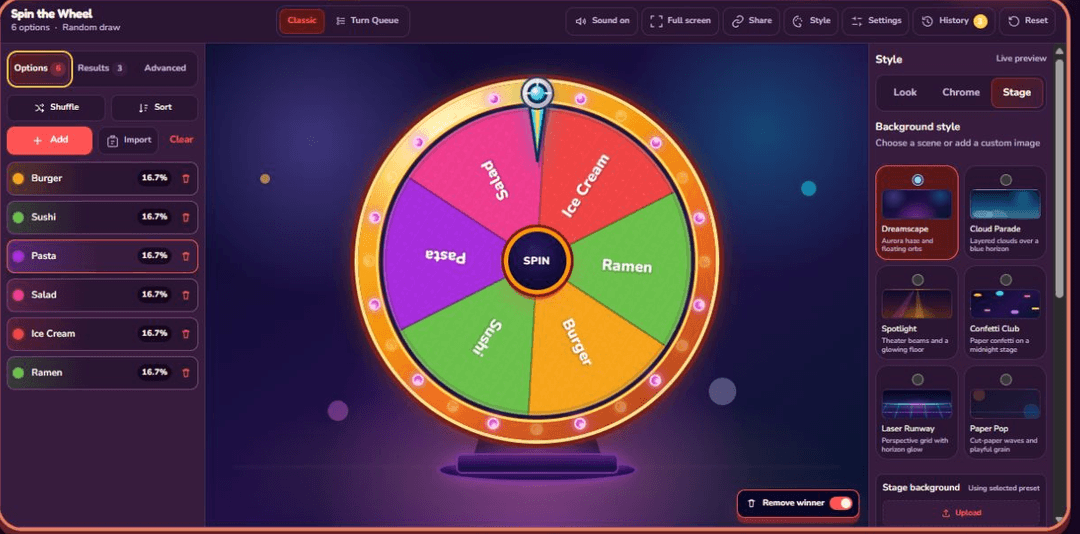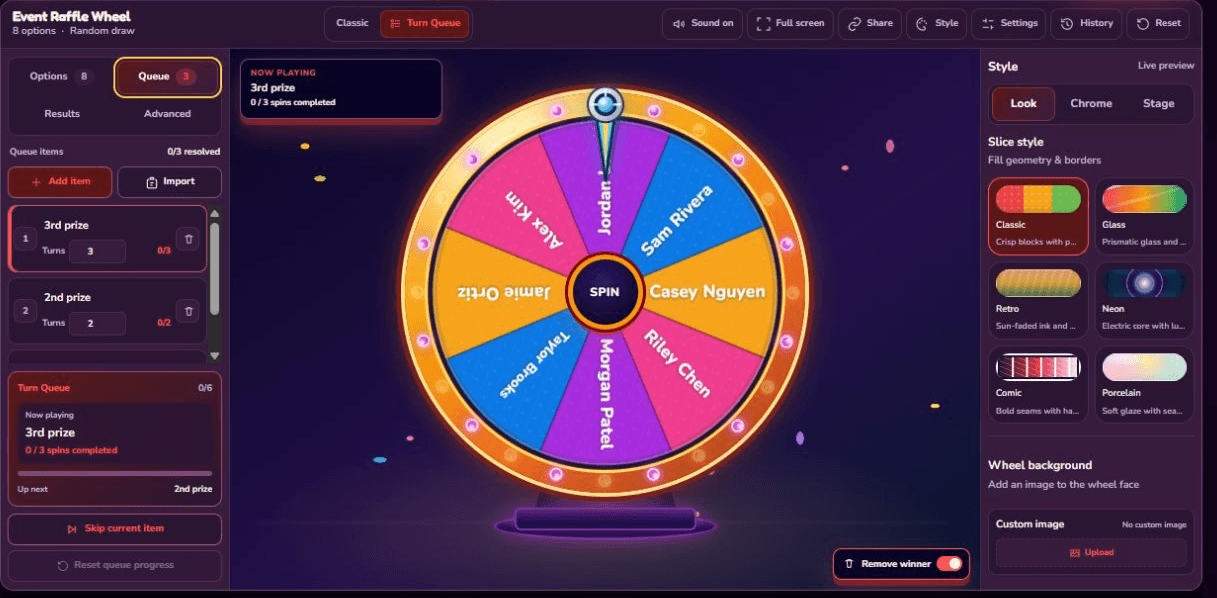
Updated August 12, 2026 after checking the steps against the current Options, Queue, Advanced, and Results controls. Examples are for informal sessions; product limits are stated in the guide.
Turn Queue is for sessions that need more structure than “spin again.” It keeps a second ordered list beside the wheel and gives every Queue item a turn count. In an event raffle, participant names belong in Options while prize tiers belong in Queue. In a classroom game, prompts can stay in Options while students or teams and their allowed turns go in Queue. Keeping those two jobs separate is the key to using the mode correctly.
Options and Queue hold different data
Options are the labels the wheel can select. Queue tells the site which person, team, prize, or round is currently active and how many spins it receives. The Now Playing card repeats the active Queue label above the wheel, and the progress panel shows completed turns and what comes next.
| Scenario | Options | Queue |
|---|---|---|
| Company prize draw | Eligible participant names | 3rd prize ×3, 2nd prize ×2, 1st prize ×1 |
| Classroom turns | Questions, topics, or tasks | Student names with their turn counts |
| Team challenge | Challenges or point values | Team Red ×3, Team Blue ×3 |
| Game draft | Roles, types, or items | Player or roster slots |
Do not put names and prizes together on the wheel for a multi-prize event. A result such as “Alex Kim” answers who won, while the highlighted Queue item answers what they won. Combining both sets into Options can land on a prize name instead of a participant.
Build the Event Raffle setup
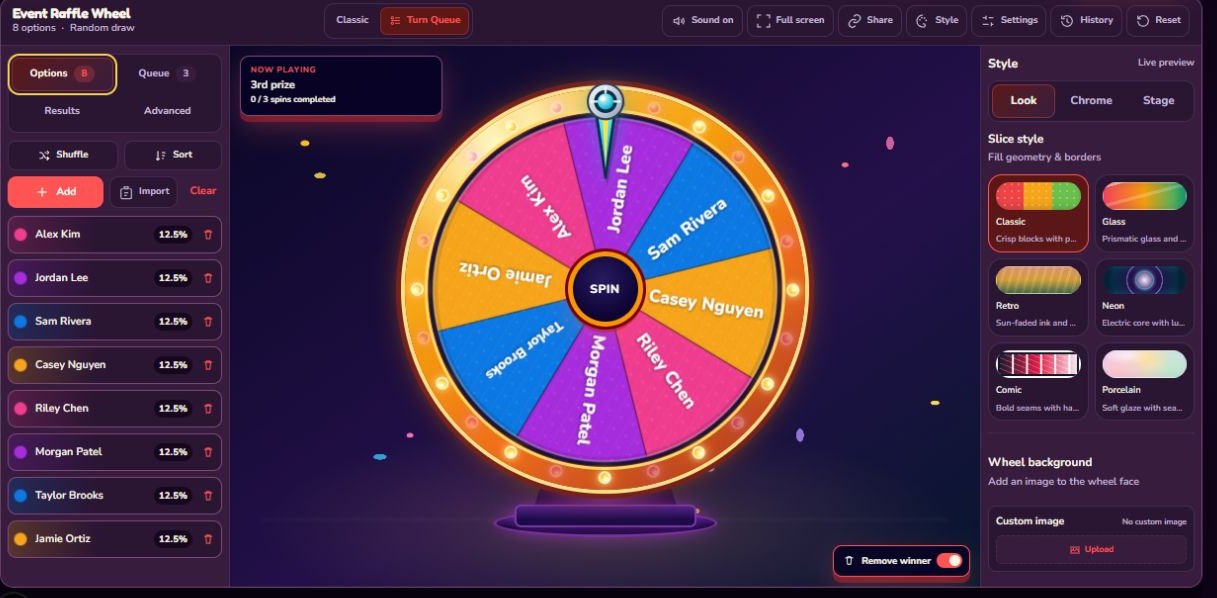
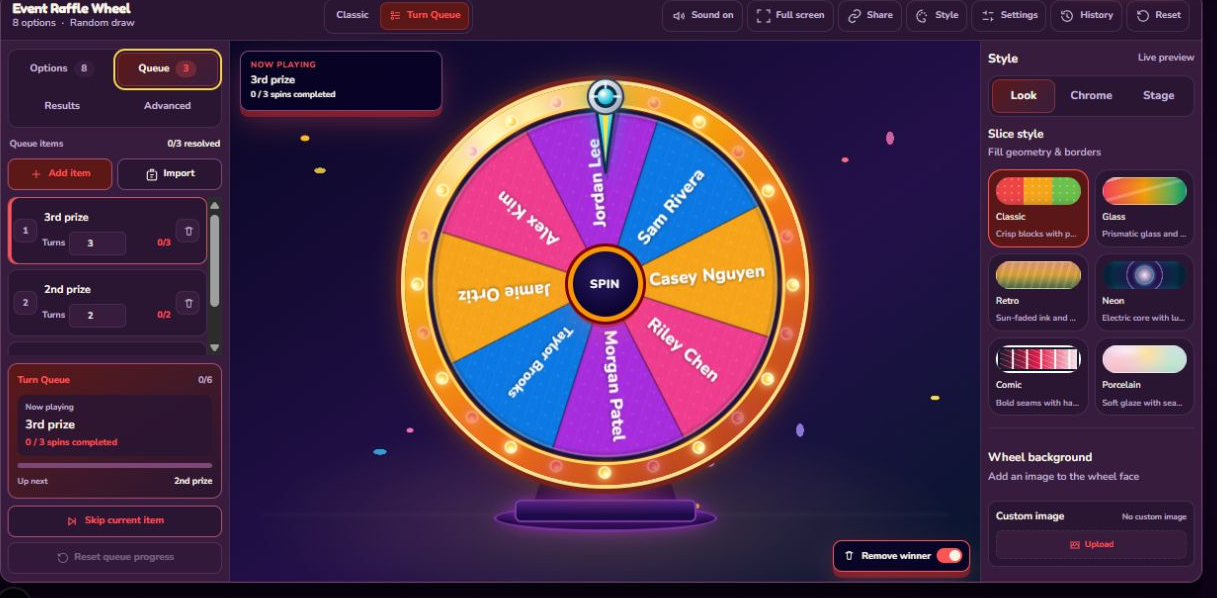
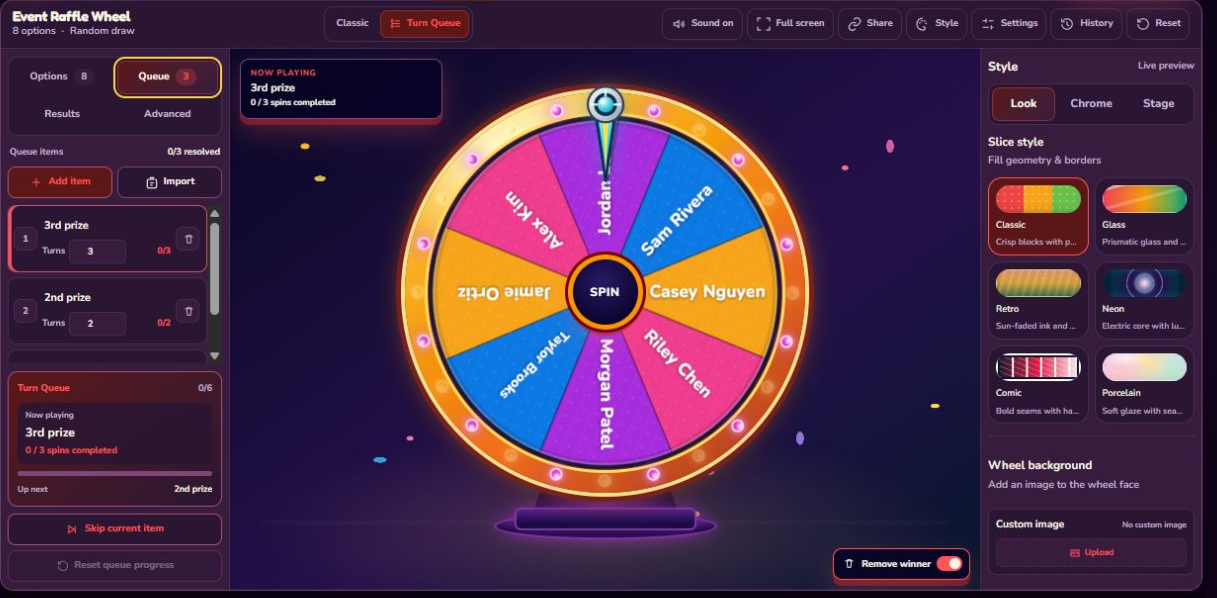
The Raffle Wheel starts with eight sample names and three Queue items: third prize for three turns, second prize for two, and first prize for one. Replace the sample names in Options with the eligible participant list. Then edit the Queue labels and turn counts so they match the real prizes.
- Open Turn Queue mode.
- Put participant names in Options.
- Put the lower prize tier first if that is your published draw order.
- Set each Queue turn count to the number of winners needed for that tier.
- Enable Remove winner when one participant may win only once.
- Confirm that the total no-repeat turns do not exceed the number of Options.
In the starter setup, 3 + 2 + 1 creates six scheduled spins. Eight names are enough to complete all six with Remove winner on, leaving two unselected participants. If you schedule ten no-repeat prizes but load only eight names, the wheel will run out of eligible options before Queue is finished.
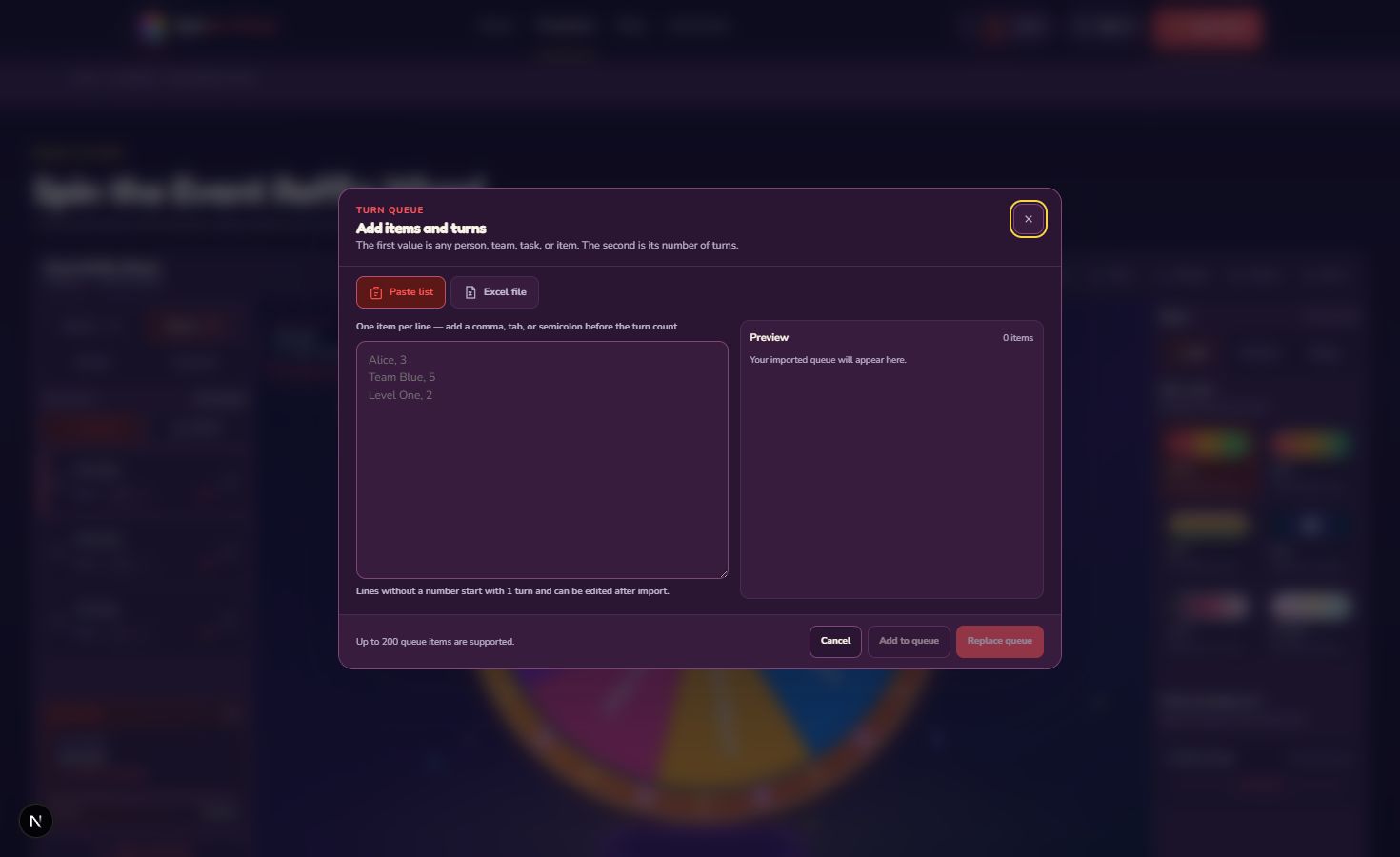
Add Queue items manually or import them
Select Add item for a short Queue. Each label is limited to 36 characters, and each item accepts 1 to 99 turns. The current Queue supports up to 200 items, although a shorter visible sequence is easier for participants to follow.
The paste importer expects one Queue item per line. Add a comma, tab, or semicolon before the number of turns:
3rd prize, 32nd prize, 21st prize, 1
A line without a number starts at one turn and can be edited later. Excel import accepts .xlsx and .xls files up to 5 MB. Choose one column for the Queue label and an optional second column for turns. The importer attempts to recognize a numeric turns column, but you should check the preview before replacing the Queue.
Choose the correct Remove winner rule
Remove winner applies to the wheel Options, not to Queue items. Turn it on for a raffle where each person may receive only one prize. After a result settles, that person's option is removed, while the active prize tier remains until its assigned turn count is complete.
Leave Remove winner off when Options are repeatable prompts or challenges. For example, Team Red and Team Blue may each receive three turns from Queue while the same task can appear for both teams. State the repeat rule before the first spin so the audience does not assume the wrong behavior.
Understand Queue order and live progress
Queue runs in the order shown. The first incomplete, unskipped item becomes active. If third prize has three turns, the active item stays on third prize until three results have been recorded. The panel then advances to second prize automatically.
Skip current item resolves the active Queue item without using its remaining turns. Use it for an absent player, a cancelled prize, or a round the group has deliberately removed. Reset queue progress starts the Queue sequence over; it should not be pressed halfway through a real draw unless you intend to restart and explain what happens to the earlier records.
Run a multi-prize draw in the room
- Display the final participant count and Queue order.
- Explain eligibility, duplicate-name handling, Remove winner, redraws, and absences.
- Confirm the Now Playing card names the correct prize.
- Spin once, read the winner, and wait for the result to record.
- Verify the tier progress before the next spin.
- Continue until Queue reports that all available turns are complete.
- Open all rounds and download the session CSV.
Drawing lower prizes first is common when first prize should be selected from people who did not already win, but it is not automatically the correct order for every event. Match the Queue to the rules you announced. Changing the order after seeing an outcome damages trust more than any visual setting can repair.
Use Results to verify the finished sequence
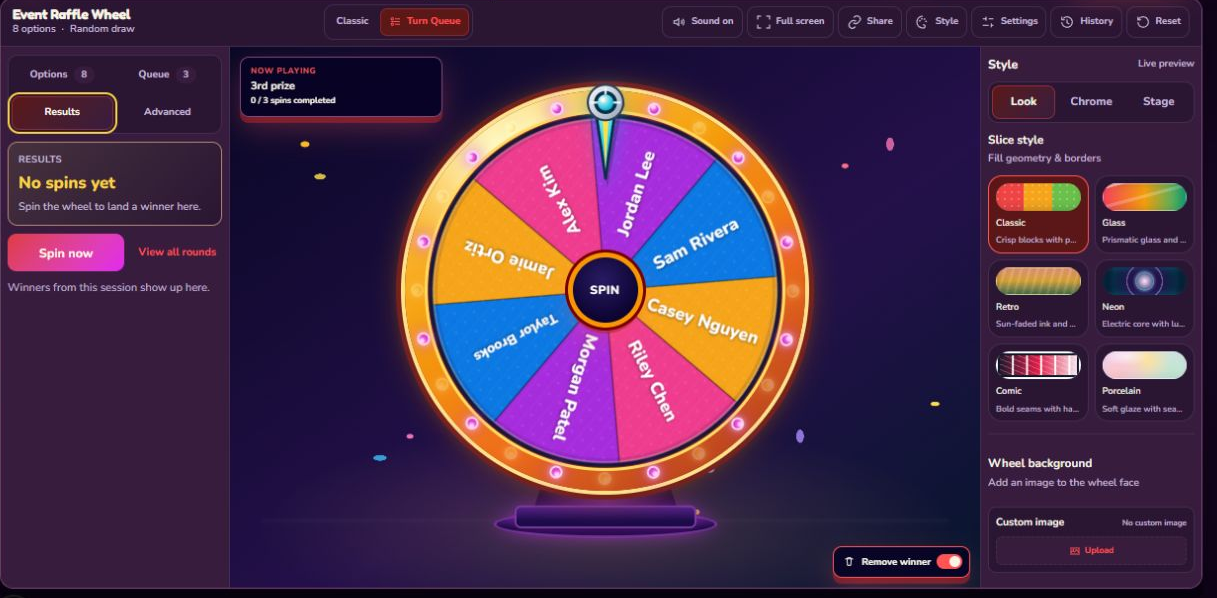
Turn Queue Results records each selected entry together with the Queue label and turn number. The session summary shows Queue rounds, unique picks, resolved Queue items, per-item progress, participation counts, and the round list. CSV export contains six columns:
| Field | Meaning |
|---|---|
| round | Result order in the current session |
| queueItem | Prize, player, team, or round active for the result |
| queueTurn | Its turn number within that Queue item |
| entry | The option selected by the wheel |
| runMode | turn-queue |
| pickedAt | ISO timestamp recorded when the spin completed |
The CSV is useful for distributing classroom assignments or keeping an informal event record. It does not include eligibility evidence, identity verification, deleted names, published contest terms, or an independent audit. Save those separately where the event requires them.
Other Turn Queue patterns
The same structure can handle more than raffles. In the Pokémon Type Team Wheel, the 18 types are Options and six team slots are Queue items. In a classroom elimination activity, student names can be Options while question rounds form the Queue. For a team game, challenges can be Options while each team receives a fixed number of turns.
The question to ask is: “What should the wheel select, and whose or which round is it?” Put the selectable answer in Options and the ordered context in Queue. If there is no ordered context and you only need repeated independent choices, Classic is simpler.
Pre-session checklist
- Options and Queue have not been reversed.
- Every participant or selectable item appears once unless duplicates are intentional.
- Queue labels and turn counts match the actual session.
- Remove winner matches the repeat rule.
- Total no-repeat turns do not exceed the number of eligible Options.
- Draw order, skips, absences, and redraw rules are agreed beforehand.
- Someone is responsible for downloading Results when the session ends.
For list preparation, Excel column selection, individual option settings, wheel styles, and Classic Results, read How to use Spin the Wheel.
How this guide was checked
The article was checked against the current Turn Queue editor, paste and Excel importers, Queue progression, skip and reset controls, Remove winner behavior, session summary, Raffle Wheel template, and CSV formatter on August 12, 2026. Turn Queue is intended for classroom, game, group, and informal prize sessions; it does not turn the browser wheel into certified lottery software.